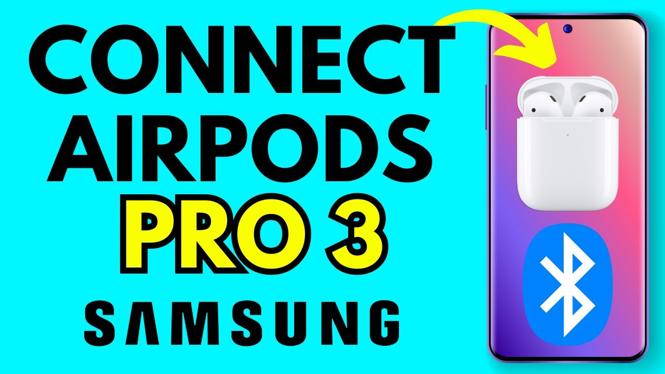
How to Connect AirPods Pro 3 to Samsung Phone
In today’s world, wireless audio has become an essential part of our daily lives. With the increasing popularity of Apple’s AirPods Pro 3, many users are looking to connect these high-quality earbuds to devices outside the Apple ecosystem, such as Samsung smartphones. This tutorial will guide you step-by-step on how to connect your AirPods Pro 3 to a Samsung phone, ensuring you can enjoy seamless audio experiences no matter the device.
Video Tutorial
Why You Might Be Looking for This Tutorial
As a Samsung phone user, you might wonder whether you can still enjoy the excellent sound quality and features of AirPods Pro 3 without owning an iPhone. The answer is yes! Connecting your AirPods Pro 3 to a Samsung phone can enhance your audio experience while allowing you to take advantage of the advanced features that the AirPods offer. This tutorial will help you understand how to bridge the gap between your Apple headphones and non-Apple devices, making your transition smooth and enjoyable.
Steps to Connect AirPods Pro 3 to Your Samsung Phone
Step 1: Prepare Your AirPods Pro 3
Start by ensuring that your AirPods Pro 3 are fully charged. Place them in the charging case and keep the lid closed. This ensures they are ready for pairing.
Step 2: Access Bluetooth Settings on Your Samsung Phone
Unlock your Samsung device and go to the ‘Settings’ app. From there, tap on ‘Connections’, then select ‘Bluetooth’. Make sure that Bluetooth is turned on.
Step 3: Open the AirPods Case
Open the lid of your AirPods Pro 3 case. You should see a light indicator on the front of the case. This light will help indicate pairing status.
Step 4: Enter Pairing Mode
With the case open, press and hold the button on the back of the case until the light starts flashing white. This means your AirPods Pro 3 are now in pairing mode and ready to connect to any Bluetooth device.
Step 5: Pair Your AirPods Pro 3 with Your Samsung Phone
On your Samsung phone’s Bluetooth menu, you should see ‘AirPods Pro’ listed under available devices. Tap on it to initiate pairing. Once connected, you will see a message confirming the successful connection.
Step 6: Adjust Audio Settings (Optional)
After connecting, you might want to customize your audio settings, such as adjusting the sound balance or checking the battery level of your AirPods via the Bluetooth menu. Take some time to explore the settings to get the best audio experience.
Troubleshooting Tips
If you encounter any issues while connecting your AirPods Pro 3 to your Samsung phone, consider these solutions:
- Ensure that your AirPods are charged and in pairing mode.
- Toggle Bluetooth off and on again on your Samsung device.
- Forget the AirPods from your Bluetooth settings and try re-pairing.
- Make sure no other device is currently connected to your AirPods Pro 3.
With these simple steps, you can now enjoy your AirPods Pro 3 with a Samsung phone, taking full advantage of the incredible sound quality they offer. Happy listening!
More Samsung Phone Tips & Tutorials:
 Subscribe Now! 🙂

Discover more from Gauging Gadgets
Subscribe to get the latest posts sent to your email.