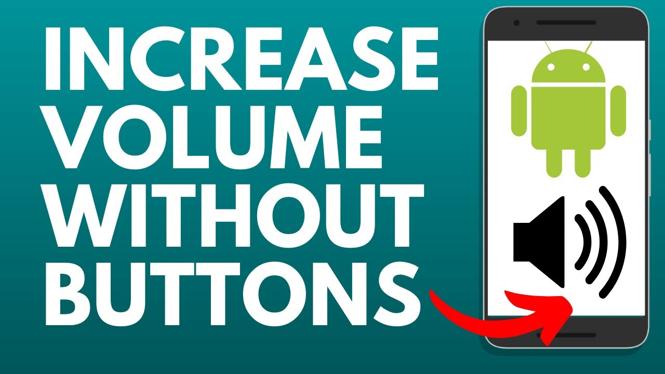
How to Adjust Volume on Android Without the Buttons
If you’re experiencing issues with the physical volume buttons on your Android device, don’t worry; there are several ways to adjust the volume without using them. This guide will discuss why you might need to adjust volume on your Android without the buttons and will provide step-by-step instructions on how to do so effectively.
Video Tutorial
For a visual demonstration of the steps covered in this guide, check out the video tutorial below:
Why You Might Be Looking for This Tutorial
You may find yourself searching for ways to adjust the volume on your Android device without using the buttons due to several reasons, including:
- Broken Volume Buttons: Physical buttons can wear out or become unresponsive over time, making it difficult to change the volume.
- Accessibility Needs: Some users may have difficulty using physical buttons and are looking for alternative ways to control volume.
- App-Specific Controls: Certain applications require fine-tuning of volume levels, and knowing how to adjust volume settings without buttons can enhance the user experience.
- Convenience: Using the screen to make adjustments can be more convenient, especially when multitasking or using an app that requires different volume levels.
Steps to Adjust Volume on Android Without the Buttons
Here are some effective methods to adjust the volume on your Android device without relying on physical buttons:
Method 1: Using Volume Settings in the Notification Shade
- Swipe down from the top of your screen to open the notification shade.
- Look for the volume slider. If you don’t see it, tap on the volume icon at the top.
- Drag the slider left or right to lower or raise the volume.
Method 2: Through the Settings App
- Open the Settings app on your device.
- Scroll down and tap on Sound or Sound & Vibration.
- You will see options for different sound categories like Media, Call, Ringtone, and Alarm. Adjust each slider accordingly.
Method 3: Using Accessibility Features
- Go to Settings and tap on Accessibility.
- Look for options that may offer additional controls for volume (such as Volume control for hearing aids).
- Depending on your device and Android version, you may set up custom accessibility gestures to control volume.
Method 4: Third-Party Applications
- Visit the Google Play Store and search for volume control apps.
- Choose an app that suits your needs (check reviews and ratings).
- Download and install the app, then follow its setup instructions to adjust the volume without physical buttons.
By following these methods, you can easily control the volume on your Android device without relying on the physical buttons, providing a user-friendly alternative for managing your audio experience.
More Android Tips & Tutorials:
 Subscribe Now! 🙂

Discover more from Gauging Gadgets
Subscribe to get the latest posts sent to your email.