How to Access Samsung Secure Folder
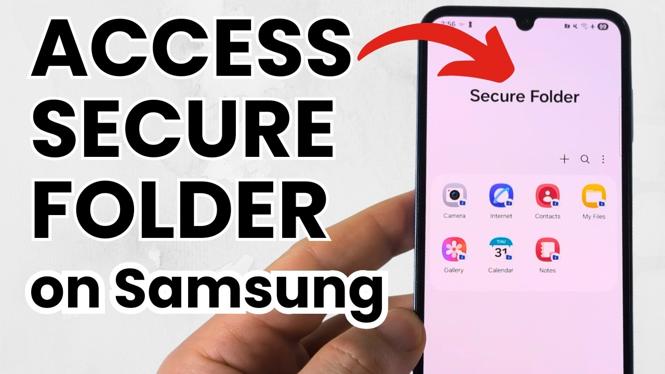
In a world where privacy concerns are more significant than ever, safeguarding personal information on your smartphone is crucial. Samsung’s Secure Folder feature provides an effective way to keep your sensitive files, apps, and data hidden and securely encrypted. Whether you want to store private images, financial documents, or other confidential information, knowing how to access the Secure Folder can enhance your digital privacy. In this blog post, we will explore the various methods to quickly find and open the Secure Folder on your Samsung device, ensuring that your important content remains protected but easily accessible when needed.
Video Tutorial
Why You Might Be Looking for This Tutorial
Many users seek out tutorials on accessing the Samsung Secure Folder for various reasons:
- Protect Personal Information: With the rise of cyber threats, users want to keep their private data secure from unauthorized access.
- Easy Access: Learning multiple ways to access the Secure Folder can save time and ensure that you can always get to your important files quickly.
- Enhanced Functionality: Understanding how to use the Secure Folder helps maximize the features of your Samsung device, allowing you to take advantage of additional privacy options.
Steps to Access Samsung Secure Folder
There are several ways to access the Samsung Secure Folder on your device. Here are the methods you can use:
Method 1: Through the App Drawer
- Unlock your Samsung device.
- Swipe up or tap on the App Drawer icon to access all applications.
- Look for the ‘Secure Folder’ icon. If it’s not visible, you may need to search for it using the search bar at the top of the App Drawer.
- Tap on the Secure Folder icon to open it. You may need to enter your authentication method (password, PIN, or biometrics) to access the contents.
Method 2: Using the Quick Settings Panel
- Swipe down from the top of your screen to access the Quick Settings panel.
- Look for the Secure Folder toggle. If it’s not visible, you may need to edit your Quick Settings to add it.
- Tap on the Secure Folder toggle, and it will prompt you to authenticate to access your files.
Method 3: Via Device Settings
- Open the ‘Settings’ app on your device.
- Scroll down and select ‘Biometrics and security.’
- Find and tap on ‘Secure Folder.’
- Authenticate using your chosen method to open your Secure Folder.
Conclusion
Accessing the Samsung Secure Folder is simple and can be accomplished in multiple ways, ensuring that you can keep your sensitive information private and easily accessible. By following the above methods, you can make the most of this secure feature and enhance your digital privacy on your Samsung device. Whether it’s through the app drawer, quick settings, or device settings, you’ll be able to locate your Secure Folder with confidence.
More Samsung Phone Tips & Tutorials:
 Subscribe Now! 🙂

Discover more from Gauging Gadgets
Subscribe to get the latest posts sent to your email.