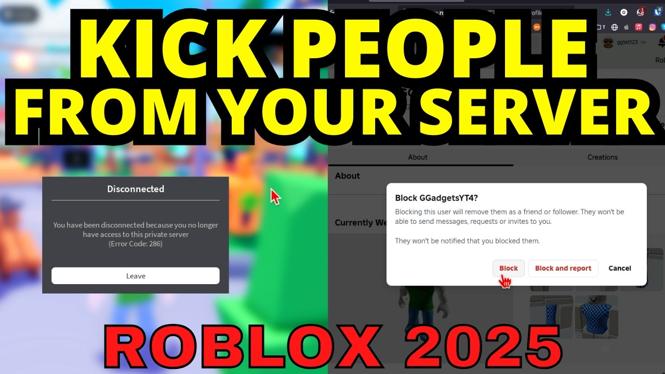
How to Kick Someone From Your Private Server in Roblox
Playing games on a private server in Roblox can enhance your gaming experience, allowing you to play with friends and maintain a controlled environment. However, sometimes unwanted players can join your session, causing disruption. Knowing how to kick someone from your private server can help you regain control of your game. In this tutorial, we will guide you through the necessary steps to remove players from your Roblox private server, whether you’re on PC or mobile.
Video Tutorial
Why You Might Be Looking for This Tutorial
As a Roblox player, you may find yourself in a situation where you need to manage who is in your private server. This could be due to various reasons, such as a player being disruptive, not following the game rules, or simply not being part of your intended gaming group. Learning how to kick someone from your private server not only enhances your gameplay experience but also helps in maintaining a positive environment for you and your friends. This tutorial provides a straightforward approach for both PC and mobile users, making it accessible for everyone.
Step-by-Step Guide to Kick Someone From Your Private Server
Step 1: Access Your Private Server
Log into your Roblox account on your preferred device (PC or mobile) and navigate to your private server. Ensure that you are the owner or have administrative privileges, as only these users can kick players.
Step 2: Open the Player List
Once in the game, find the player list option. This is often located in the game menu, which can usually be accessed by tapping the three horizontal lines or pressing the ‘M’ key on your keyboard for PC players.
Step 3: Identify the Player You Want to Kick
In the player list, browse through the usernames and identify the player you wish to remove from the server. It’s important to be certain about this step to prevent accidentally removing the wrong player.
Step 4: Kick the Player
Click on the username of the player you want to kick. A menu should appear, giving you the option to “Kick Player.” Confirm your choice if prompted. The player will be immediately removed from your server and will not be able to rejoin unless invited back.
Step 5: Manage Future Sessions
After kicking the player, review your server settings to ensure you are managing who can join your private game. You might want to consider adjusting your server settings to limit access to invited players only.
By following these steps, you can maintain a fun and engaging gaming environment on your Roblox private server. Remember, it’s important to communicate with your friends and fellow players about the rules and expectations to create a positive gaming experience for everyone involved.
More Roblox Tips & Tutorials:
 Subscribe Now! 🙂

Discover more from Gauging Gadgets
Subscribe to get the latest posts sent to your email.