How to Download Firefox on Mac
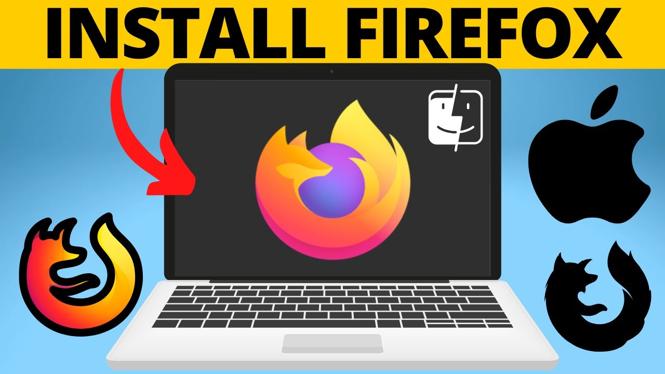
If you’re looking for a fast, reliable, and customizable web browser, Firefox is an excellent choice. Many users prefer Firefox for its privacy features and extensive add-ons. However, if you’re new to Mac or just haven’t made the switch to Firefox yet, you might be wondering how to download and install it on your Mac device. This guide will provide you with a step-by-step tutorial to easily download Firefox on any Mac model including Mac Mini, MacBook Air, and MacBook Pro.
Video Tutorial
Why You Might Be Looking for This Tutorial
There are several reasons why you might want to download Firefox on your Mac:
- Enhanced Privacy: Firefox is known for its strong focus on user privacy and security.
- Customization: With numerous add-ons and themes, Firefox allows you to tailor your browsing experience to your liking.
- Improved Performance: Users often find Firefox to be faster and more efficient compared to other browsers.
- Compatibility: Firefox supports all major operating systems, making it a versatile choice for multiple devices.
Steps to Download and Install Firefox on Your Mac
Follow these simple steps to download and install Firefox on your Mac:
- Open Your Browser: Launch Safari or any other web browser currently installed on your Mac.
- Visit the Firefox Download Page: Navigate to the official Firefox download page by entering the following URL: https://www.mozilla.org/en-US/firefox/new/.
- Download Firefox: Click on the “Download Now” button. The website will automatically detect your operating system and provide the appropriate download.
- Locate the Installer: Once the download completes, locate the Firefox installer file in your Downloads folder.
- Install Firefox: Double-click the installer file. A new window will open; drag the Firefox icon into the Applications folder. This will install Firefox on your Mac.
- Launch Firefox: Navigate to your Applications folder and double-click on the Firefox icon to open the browser for the first time.
- Set Your Preferences: Upon launching, you may want to set Firefox as your default browser and adjust your preferences according to your needs.
That’s it! You have successfully downloaded and installed Firefox on your Mac. If you have any questions or face any issues during the installation process, feel free to leave a comment below or check out the video tutorial for further assistance.
More MacOS Tips & Tutorials:
 Subscribe Now! 🙂

Discover more from Gauging Gadgets
Subscribe to get the latest posts sent to your email.