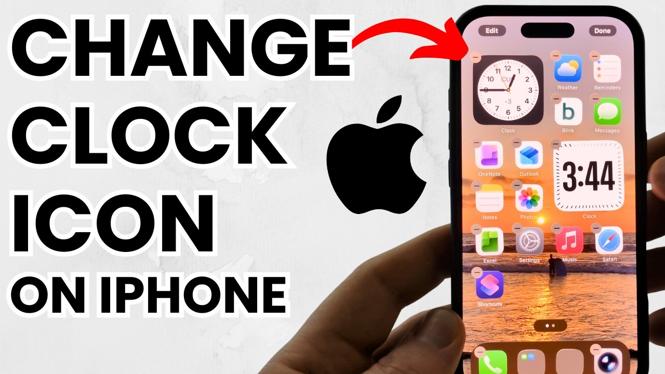
How to Change Clock Icon on iPhone Home Screen
Are you looking to personalize your iPhone home screen? Changing the clock icon is a simple yet effective way to give your device a fresh look. Whether you’re using an iPhone 17, iPhone 16, or any other model running iOS 26, this guide will walk you through the steps to customize the clock app icon without needing any third-party applications or advanced technical skills.
Video Tutorial
Why You Might Be Looking for This Tutorial
Many iPhone users desire a more personalized experience on their devices. As we use our phones daily, customizing the home screen layout to reflect our style can make a significant difference in our interaction with the device. Changing the clock icon is a great starting point for anyone looking to refresh their home screen without going through complicated processes. This tutorial caters to all levels of users, providing step-by-step guidance that’s easy to follow.
Steps to Change the Clock Icon on Your iPhone Home Screen
Step 1: Prepare Your Home Screen
Begin by unlocking your iPhone and navigating to the home screen where the clock icon is located. Ensure you have a clear space for the new icon.
Step 2: Access the Shortcuts App
Open the Shortcuts app on your iPhone. This app is built into your iPhone, so there’s no need to download anything extra. If you can’t find it, swipe down on the home screen and use the search bar to locate ‘Shortcuts.’
Step 3: Create a New Shortcut
In the Shortcuts app, tap on the ‘+’ icon at the top right to create a new shortcut. Select ‘Add Action’ and then choose ‘Scripting.’ From here, tap on ‘Open App’ to set up the action to open the Clock app.
Step 4: Select the Clock App
After selecting ‘Open App,’ tap on the word ‘App’ to choose which application you want this shortcut to open. Scroll through your apps and select ‘Clock.’
Step 5: Customize the Icon
Next, tap on the three dots in the upper right corner. Here, you can name your shortcut (this will be the name displayed under your icon) and then tap on ‘Add to Home Screen.’ You’ll be prompted to select an icon. Tap on the icon to choose a photo or image from your library to use as your new clock icon.
Step 6: Add the New Icon to Your Home Screen
Once you’ve selected your desired image, confirm by tapping ‘Add.’ The new clock icon will now appear on your home screen, replacing the original one. Feel free to move it around to your preferred location.
Step 7: Test Your New Icon
Lastly, tap your newly created clock icon to ensure it opens the Clock app as intended. If everything is working properly, you’ve successfully changed your clock icon!
Conclusion
Customizing your iPhone home screen by changing the clock icon is an easy way to personalize your device. Following these steps, you can create a look that reflects your personal style without needing technical expertise. Enjoy your revamped home screen!
More iPhone Tutorials:
 Subscribe Now! 🙂

Discover more from Gauging Gadgets
Subscribe to get the latest posts sent to your email.