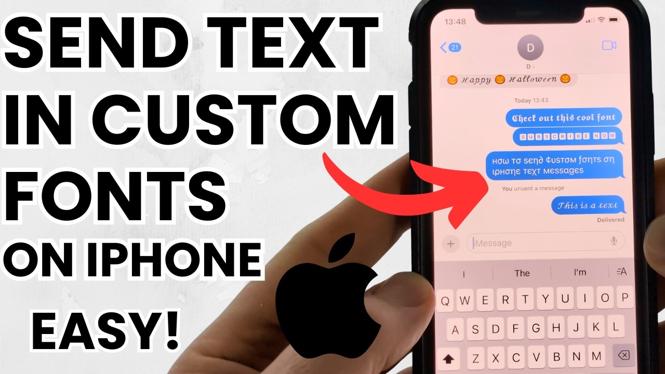
How to Send Text in Custom Fonts on iPhone
In today’s digital age, expressing your individuality and style in text messages and social media posts is more important than ever. Thanks to the capabilities of iOS, users can now send messages using custom fonts, helping their texts stand out in a sea of plain text. This tutorial provides a step-by-step guide on how to utilize custom fonts on your iPhone without needing to download any additional apps.
Video Tutorial
Why You Might Be Looking for This Tutorial
Many iPhone users seek ways to enhance their messaging experience by personalizing their texts with unique styles. Whether you want to impress friends in a group chat, add flair to a social media post, or simply express yourself in a more artistic way, learning to send text in custom fonts can be incredibly useful. Using TextTrick.com, you can easily convert your standard text into eye-catching fonts quickly and effortlessly.
Steps to Send Text in Custom Fonts on iPhone
Step 1: Access TextTrick.com
Open your preferred web browser on your iPhone and navigate to TextTrick.com. This website provides an easy-to-use interface for generating custom fonts.
Step 2: Type Your Message
In the textbox provided on TextTrick.com, type the message you wish to send in your desired font. You can experiment with different styles until you find one you like.
Step 3: Choose a Custom Font
Once you’ve typed your message, scroll through the list of available font styles on the website. Click on the font you want to use, and the site will automatically generate your text in that style.
Step 4: Copy the Styled Text
After selecting your preferred font, tap and hold on the styled text to reveal the copy option. Select “Copy” to save it to your clipboard.
Step 5: Paste the Text into Your Messaging App
Open your messaging app, such as iMessage or any social media platform, and tap on the message input field. Tap again to paste the copied text. Your custom font is now ready to be sent!
Step 6: Send Your Message
Review your message to ensure everything looks good, then hit send! You have successfully personalized your text with a custom font.
Conclusion
Sending text in custom fonts on your iPhone is a fun way to add personality to your messages and make your communications more engaging. By using TextTrick.com, you can easily generate unique typography styles that allow you to stand out. Follow the steps outlined above, and start creating stylized messages today!
More iPhone Tutorials:
 Subscribe Now! 🙂

Discover more from Gauging Gadgets
Subscribe to get the latest posts sent to your email.