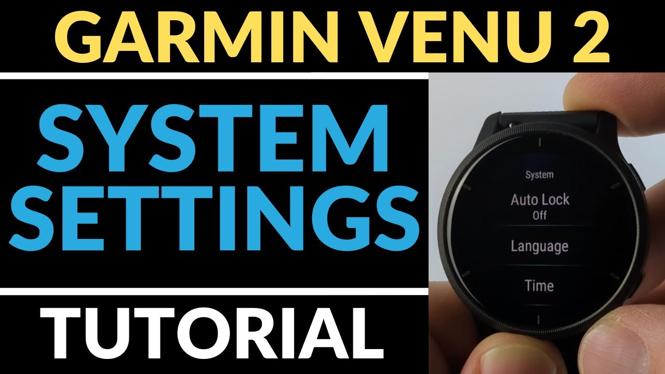
System Settings Overview – Garmin Venu 2 Tutorial
The Garmin Venu 2 is a powerful smartwatch designed to support your active lifestyle. With its sleek design and advanced features, it offers users a comprehensive tool to track fitness activities and manage health-related metrics. However, to maximize its potential, understanding the system settings is crucial. This tutorial will guide you through the essential system configurations, including language adjustments, backlight brightness, time settings, and how to perform a factory reset if necessary.
Video Tutorial
Why You Might Be Looking for This Tutorial
If you’ve recently purchased a Garmin Venu 2 or are considering it, you may find yourself seeking guidance on how to navigate its system settings. Knowing how to customize your watch can greatly enhance your user experience, whether you’re an athlete tracking performance metrics or an everyday user wanting to receive notifications and monitor health statistics effectively. Additionally, understanding these settings can save you time and frustration in the long run.
Steps to Access and Adjust System Settings on the Garmin Venu 2
1. Accessing the System Settings
To begin, power on your Garmin Venu 2. From the main screen, press the side button to access the menu. Scroll down and select the ‘Settings’ option where you will find various categories to customize your watch.
2. Changing the Language
Once in ‘Settings,’ navigate to ‘System’ and select ‘Language.’ Here, you can choose your preferred language from the list provided. Confirm your selection to apply the change.
3. Adjusting Backlight Brightness
In the ‘System’ menu, select ‘Backlight’ to adjust brightness. You can choose from options such as ‘Always On,’ ‘Timed,’ or ‘Auto’ depending on your preference for visibility in various lighting conditions. Use the slider to set your desired brightness level.
4. Setting the Time and Date
Still in the ‘System’ category, find ‘Time.’ Here, you can modify the current time, date, and format (12-hour or 24-hour). Ensure that your time zone is set correctly for accurate tracking and notifications.
5. Performing a Factory Reset
If you encounter persistent issues or wish to restore your device to its original settings, consider a factory reset. Within ‘System,’ scroll to ‘Reset.’ You will have the option to clear data or perform a complete factory reset. Follow the prompts to confirm your choice; be aware that this will erase all personalized settings and data.
Conclusion
Learning to navigate the system settings on your Garmin Venu 2 can empower you to make the most of your device. By following this tutorial, you’ll be able to customize your watch to fit your personal style and usage needs. For further assistance, don’t hesitate to leave questions or comments on the video linked above.
More Garmin Venu 2 Tutorials:
 Subscribe Now! 🙂

Discover more from Gauging Gadgets
Subscribe to get the latest posts sent to your email.