How to Go Back to Old Outlook: A Step-by-Step Guide
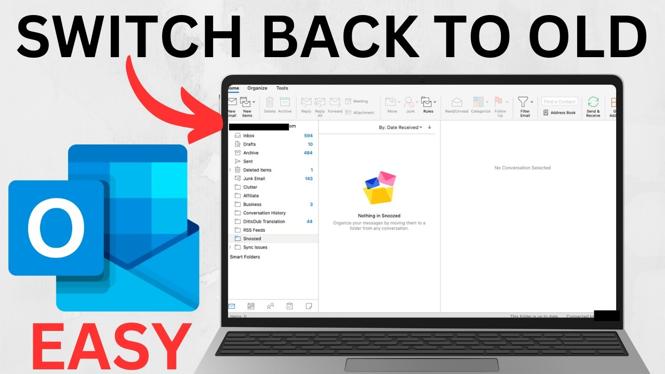
If you’ve recently updated to the new Outlook interface and find it confusing or less user-friendly, you’re not alone. Many users prefer the classic Outlook layout for its familiarity and simplicity. This tutorial provides a comprehensive guide on how to revert Outlook to the classic view, allowing you to easily return to the version you’re accustomed to. By following these steps, you will regain access to the features and layout that make your email management more efficient.
Video Tutorial
Why You Might Be Looking for This Tutorial
With regular updates, software interfaces often change, and while some users appreciate new features, others prefer the way things used to be. If you’re someone who finds the new Outlook layout complicated or lacking the functionalities you rely on, this guide will help you switch back. Whether you’re juggling multiple accounts, sorting through a high volume of emails, or simply want to keep your email experience straightforward, reverting to the classic Outlook view can enhance your productivity and comfort.
Steps to Go Back to Old Outlook
Step 1: Open Outlook
Launch your Outlook application. Ensure that you have it updated to the latest version, as this may influence your ability to switch back.
Step 2: Access Settings
Look for the ‘File’ menu in the upper left corner of the Outlook window. Click on it to open the options menu.
Step 3: Choose Options
In the sidebar within the File menu, select ‘Options.’ This will bring up a new window with various settings you can configure.
Step 4: Personalize Your Experience
In the Options window, look for the category labeled ‘General’. Within this section, find the option that relates to ‘User Interface options’ or ‘Display options’ depending on your version of Outlook.
Step 5: Revert to Classic Layout
Locate the checkbox or toggle that allows you to switch back to the classic Outlook layout. Check this option or select it, then click ‘OK’ to apply your changes.
Step 6: Restart Outlook
Close Outlook and reopen it to see the changes take effect. You should now have access to the old Outlook interface.
Final Thoughts
Reverting to the old Outlook layout can significantly improve your email experience if you’re more comfortable with its features. Following these steps will allow you to control your email environment effectively and ensure you work efficiently without unnecessary distractions. Remember, as software continues to evolve, it’s important to stay adaptable and find what works best for you.
More Outlook Tips & Tutorials:
 Subscribe Now! 🙂

Discover more from Gauging Gadgets
Subscribe to get the latest posts sent to your email.