How to Fix Black Screen on Android Phone
A black screen on your Android phone can be a frustrating experience. When your device stops responding or displays only a black screen, it can feel like a major setback. Whether you’re using a Samsung Galaxy, a Google Pixel, or another Android device, understanding how to troubleshoot and resolve this issue is essential. In 2026, you no longer need to panic over a black screen; with the right guidance, you can get your phone working again in no time.
Video Tutorial
Why One Might Be Looking for This Tutorial
There are several reasons why you may encounter a black screen on your Android phone. Some common scenarios include:
- Your phone fell and now the screen won’t turn on.
- Software updates or glitches causing the display to malfunction.
- Battery issues leading to an unresponsive screen.
- You accidentally pressed a combination of buttons that triggered a screen freeze.
Regardless of the cause, this guide will provide a step-by-step approach to diagnosing and fixing the black screen issue, so you can avoid a costly repair service and take matters into your own hands.
Steps to Fix Black Screen on Android Phone
Step 1: Force Restart Your Device
The first and simplest step is to force restart your device. This can often resolve temporary software glitches. To do this, press and hold the power button and the volume down button simultaneously for about 10 to 15 seconds until the device reboots.
Step 2: Charge Your Phone
If the screen stays black after a restart, try plugging in your phone to charge. Sometimes, a low battery can lead to a black screen. Allow it to charge for at least 30 minutes, then try turning it on again.
Step 3: Check for Hardware Damage
If the battery is not the issue, inspect your phone for any physical damage. Look for cracks or screen damage that may have occurred if the phone was dropped. If you notice any significant issues, a professional repair may be necessary.
Step 4: Boot into Safe Mode
Booting your phone into Safe Mode can help determine if a third-party app is causing the issue. To enter Safe Mode, press and hold the power button, then tap and hold the “Power off” option until the option to reboot in Safe Mode appears. Confirm and see if the screen works.
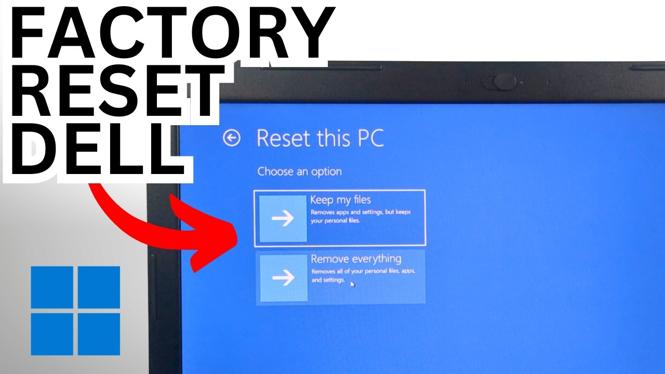
Step 5: Factory Reset
If none of the above steps work, a factory reset may be the last resort option. Note that this will erase all data on your device, so ensure you have a backup before proceeding. You can perform a factory reset by going into the recovery mode (holding the power and volume buttons) and selecting the reset option.
Conclusion
A black screen on your Android phone can be concerning, but with these steps, you can effectively troubleshoot and resolve the issue. From a simple restart to checking for hardware problems, addressing a black screen issue can often be handled without professional assistance. For further help, refer to the video tutorial above for a detailed visual guide.
More Android Tips & Tutorials:
 Subscribe Now! 🙂

Discover more from Gauging Gadgets
Subscribe to get the latest posts sent to your email.