How to Delete Facebook Page on iPhone, Android, & Samsung
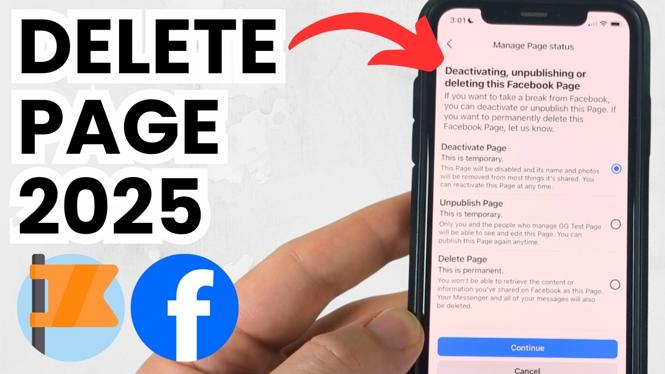
In today’s digital age, many users find themselves wanting to declutter their social media presence. Whether you’ve created a Facebook Page for a project that has since ended, or you simply want to remove an outdated page, learning how to delete a Facebook Page can be essential. Fortunately, you can delete your Facebook Page directly from your mobile device, whether you are using an iPhone, Android, or Samsung phone. In this tutorial, we will guide you step-by-step on how to permanently remove a Facebook Page using the Facebook app.
Video Tutorial
Why You Might Be Looking for This Tutorial
There are several reasons someone might search for how to delete a Facebook Page:
- Outdated Content: You may have created a page for an event or project that has concluded.
- Reduced Digital Footprint: Some users prefer to limit their social media presence.
- Improper Management: If you no longer manage the page or it was set up without your current knowledge, you may want it gone.
- Enhancing User Experience: Deleting unnecessary pages can help streamline your online interactions.
Steps to Delete Your Facebook Page on Mobile
Follow these steps to delete your Facebook Page on iPhone, Android, or Samsung devices:
- Open the Facebook App: Launch the Facebook app on your device and log in to your account.
- Access Your Pages: Tap on the three horizontal lines (menu) located at the top right corner (or bottom right on iPhone). Select “Pages” to view all the pages you manage.
- Select the Page to Delete: Choose the page you wish to delete from the list of pages.
- Go to Settings: Tap on “Settings” located in the top right corner of your Page.
- Find the Delete Option: Scroll down to find the “Remove Page” section. Tap on “Delete [Page Name].”
- Confirm Deletion: A prompt will appear asking if you are sure you would like to delete the page. Confirm by tapping “Delete Page.”
Once you follow these steps, the page will be deleted permanently. Remember, you won’t be able to retrieve any content associated with it after deletion. Make sure to consider backing up any information you might need in the future before proceeding with the deletion.
Conclusion
Deleting a Facebook Page can be a straightforward process if you follow the right steps. By managing your social media presence effectively, you can ensure that your online profiles accurately reflect your current interests and projects. This tutorial provides you with the knowledge needed to remove any unwanted Facebook Pages directly from your mobile device.
More Facebook Tips & Tutorials:
 Subscribe Now! 🙂

Discover more from Gauging Gadgets
Subscribe to get the latest posts sent to your email.