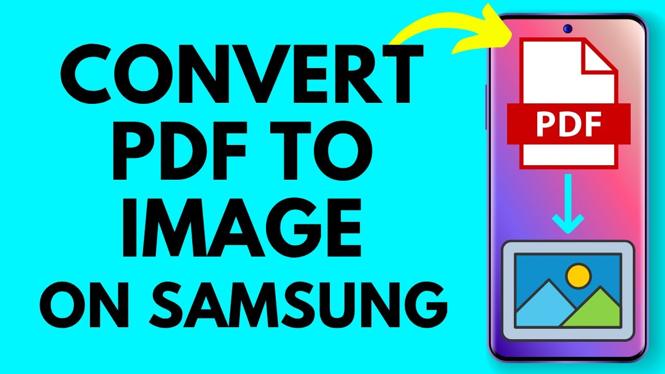
How to Convert PDF to Image on Samsung Phone
Converting PDF documents into images can be incredibly useful, whether you need to share a specific page, create graphics for social media, or simply want an image format for easier access. With the rise of digital documents, many users find themselves needing to convert PDFs into images but don’t always know how to do it on their mobile devices. If you own a Samsung phone and want a straightforward guide on how to convert PDF files into high-quality PNG or JPG images directly on your device, you are in the right place. In this blog post, we will provide step-by-step instructions on using a helpful tool called PDFGadget for PDF conversion.
Video Tutorial
Why You Might Be Looking for This Tutorial
There are several situations where converting a PDF to an image on your Samsung phone becomes essential. You might want to:
- Share important pages with friends or colleagues without requiring them to download the entire PDF.
- Create graphics or quotes from PDF documents for social media posts.
- Edit or annotate specific sections of a PDF document in image format.
- Easily upload or attach images to various apps, which may support image formats better than PDFs.
Using PDFGadget allows you to perform this task conveniently without needing extensive software or technical skills. Now, let’s dive into the step-by-step process of converting your PDF files into images on your Samsung phone.
Steps to Convert PDF to Image on Your Samsung Phone
- Open Your Browser: Start by launching your preferred browser on your Samsung phone.
- Visit PDFGadget: Type in the URL for PDFGadget or search for it in your browser to access the tool.
- Select Your PDF: Tap on the option to upload or select your PDF file from your device. Navigate to the location of the PDF you wish to convert.
- Choose Output Format: Once the PDF is uploaded, select the desired image format (either PNG or JPG) that you want for your images.
- Convert the PDF: Initiate the conversion process by pressing the convert button. Wait for a few moments while the tool processes your file.
- Download Images: After the conversion is complete, you will receive a prompt to download the images. Choose to save them directly to your phone’s gallery or files app.
- Access Your Images: Open your gallery or files app to view, share, or edit the images as needed.
By following these simple steps, you can easily convert any PDF document into high-quality images directly from your Samsung phone, making your files more versatile and accessible.
Conclusion
Converting PDFs to images on a Samsung phone can streamline your workflow and enhance sharing options. The PDFGadget tool simplifies this process, allowing you to convert files without expensive software. We hope this tutorial helps you accomplish your conversion tasks effortlessly!
More PDF Tools & Tutorials:
 Subscribe Now! 🙂

Discover more from Gauging Gadgets
Subscribe to get the latest posts sent to your email.