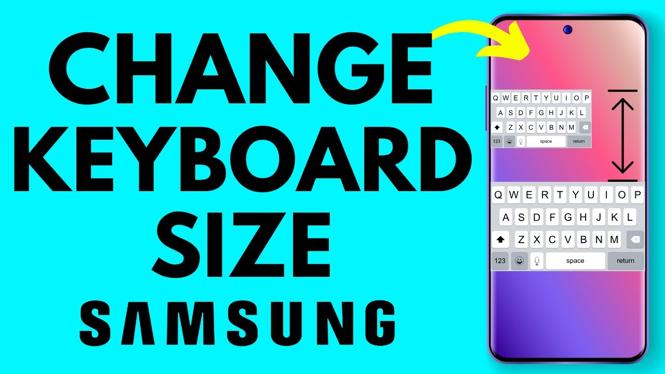
How to Change Keyboard Size on Samsung Phone
Are you having trouble typing on your Samsung phone due to the keyboard size? Whether your fingers are too large for the default settings or you simply prefer a more tailored experience, adjusting your keyboard size can significantly enhance your typing comfort and efficiency. In this guide, we will show you how to change the keyboard size on your Samsung Galaxy phone using the built-in Samsung Keyboard settings. With just a few simple steps, you can make your keyboard bigger or smaller based on your preferences, allowing for improved accuracy while typing.
Video Tutorial
Why You Might Be Looking for This Tutorial
Many users look for ways to customize their smartphone experience, including adjusting the keyboard settings. You might be facing issues such as:
- Difficulty Typing: If the keyboard is too small, it can lead to typing errors and frustration.
- Preference for Larger Keys: Some users prefer larger keys for a better grip when typing.
- Age-Related Challenges: Older adults may find larger keyboards easier to read and use.
- Accessibility Needs: Users with certain disabilities may require a customized keyboard size for ease of use.
This tutorial caters to all these scenarios to ensure a better typing experience on your device.
Steps to Change Keyboard Size on Samsung Phone
- Open Settings: Unlock your Samsung phone and tap on the “Settings” app from the home screen.
- Select General Management: Scroll down and tap on “General management” to access language and input options.
- Tap on Samsung Keyboard Settings: Find and select “Samsung Keyboard settings.” This will redirect you to the keyboard customization options.
- Choose Size and Style: In the keyboard settings, look for an option labeled “Size and style.” Tap on this option to adjust the keyboard size.
- Adjust Keyboard Size: Use the slider or adjustment tools provided to make the keyboard bigger or smaller according to your needs. You can preview the changes as you adjust the size.
- Save Your Changes: Once you’re satisfied with the size, simply exit the settings to save your changes. The new keyboard size will be applied immediately.
By following these simple steps, you can customize your keyboard size to enhance your typing experience on your Samsung phone. Enjoy a more personalized and comfortable interface that meets your unique needs!
More Samsung Phone Tips & Tutorials:
 Subscribe Now! 🙂

Discover more from Gauging Gadgets
Subscribe to get the latest posts sent to your email.