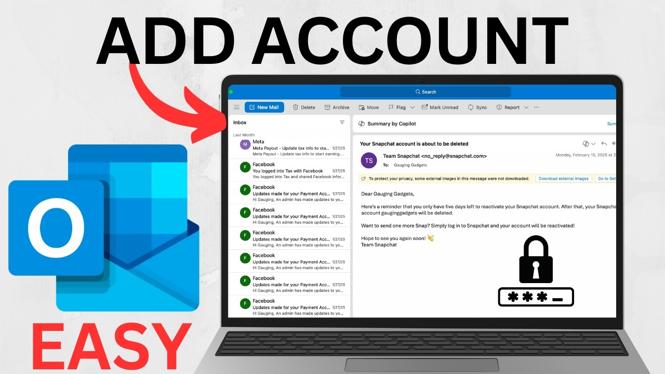
How To Add Email Account To Outlook
Are you struggling to set up your email account in Outlook? Whether you’re using the Classic or New Outlook versions, adding an email account can sometimes be confusing. This guide will walk you through the process step-by-step, ensuring you can quickly send and receive emails from your preferred providers, including Gmail, Yahoo, and more. With easy-to-follow instructions, you’ll be managing your email accounts in no time.
Video Tutorial
Why You Might Be Looking For This Tutorial
Many individuals and businesses rely on Outlook for their email management, and knowing how to add an email account is essential for effective communication. You might be looking for this tutorial if:
- You are new to Outlook and need guidance on setting up your email.
- You have recently switched email providers and want to integrate your new account.
- You are upgrading to a new version of Outlook and require updated instructions.
- You need to manage multiple email accounts in one place for convenience.
Steps to Add an Email Account to Outlook
For Classic Outlook Version
- Open Outlook and click on the “File” tab in the top left corner.
- Select “Account Settings,” then choose “Account Settings” again.
- In the Email tab, click on “New” to start adding a new account.
- Choose “Email Account” and click “Next.”
- Fill in your name, email address, and password, then click “Next.” Outlook will test your account settings and, if successful, will let you know.
- Click “Finish” to complete the setup.
For New Outlook Version
- Launch the new Outlook application on your computer.
- Click on the “File” menu in the top left corner.
- Select “Add Account.”
- Enter your email address and click “Connect.”
- Provide your password when prompted, and click “Connect” again.
- Wait for Outlook to configure your account, then click “Done” once it’s finished.
Conclusion
By following this guide, you can easily add your email account to Outlook, whether you are using the Classic or New version. Now you can consolidate your communication in one place, making it more efficient to stay in touch with colleagues, friends, and clients. For a visual guide, check out the video tutorial included above.
More Outlook Tips & Tutorials:
 Subscribe Now! 🙂

Discover more from Gauging Gadgets
Subscribe to get the latest posts sent to your email.