How to Copy & Paste Text on iPhone
In today’s digital age, knowing how to efficiently copy and paste text on your iPhone is an essential skill. Whether you’re sharing a link with a friend, moving important information between apps, or simply need to repeat some text, mastering this function can save you time and frustration. This guide will provide you with a step-by-step tutorial on how to copy and paste text on your iPhone, making your daily tasks smoother and quicker.
Video Tutorial
Why You Might Be Looking for This Tutorial
If you’re new to the iPhone or just want to improve your efficiency, you may be wondering how to easily copy and paste text. This simple yet powerful feature allows you to handle information more effectively, whether in messaging apps, web browsers, or notes. Learning how to copy and paste text can enhance your productivity, streamline communication, and make it easier to gather and organize important information.
Steps to Copy & Paste Text on iPhone
Step 1: Select the Text
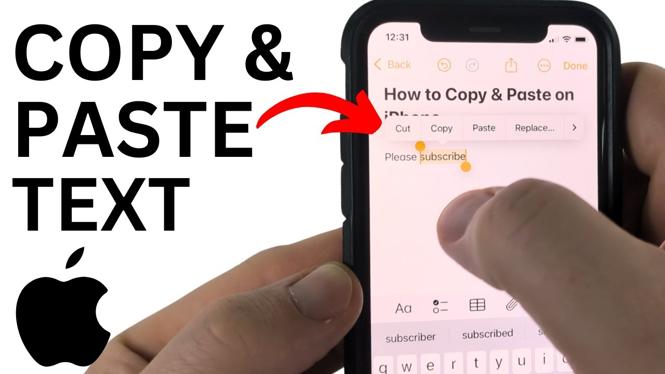
To start, navigate to the text you want to copy. Tap and hold on the text until you see a magnifying glass. Once you release your finger, you will see selection handles appear. Adjust the selection handles to highlight the exact text you want to copy.
Step 2: Copy the Text
After selecting the desired text, look for the “Copy” option in the pop-up menu that appears. Tap on “Copy,” and the selected text will be saved to your clipboard.
Step 3: Navigate to the Destination App
Now, open the app where you want to paste the text. This could be an email, a note-taking app, or any messaging service like Messages or WhatsApp.
Step 4: Paste the Text
In the app, tap and hold on the area where you want to insert the copied text. A pop-up menu will appear with the option to “Paste.” Tap on “Paste,” and your copied text will appear in the location you selected.
Conclusion
Copying and pasting text on your iPhone is a straightforward process that can enhance your overall mobile experience. By following these steps, you can quickly move information between apps and streamline your workflow. Whether you’re sharing information with friends or keeping notes for yourself, mastering this feature is a valuable skill.
Start Copying and Pasting Today!
Now that you know how to copy and paste text on your iPhone, go ahead and try it out. With just a few taps, you can improve your productivity and make your iPhone usage even more efficient.
More iPhone Tips & Tutorials:
 Subscribe Now! 🙂

Discover more from Gauging Gadgets
Subscribe to get the latest posts sent to your email.