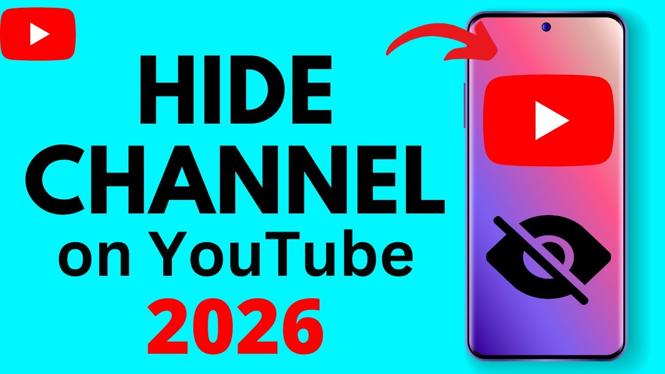
How to Hide Your YouTube Channel on Mobile
In today’s digital age, privacy is a significant concern for many content creators and viewers. Whether you’re taking a break from YouTube, rebranding your channel, or simply want to make your channel temporarily invisible, knowing how to hide your YouTube channel on mobile can be particularly useful. This tutorial will guide you through the steps to deactivate your channel on mobile devices without completely deleting your account, ensuring your videos, playlists, and subscribers remain safe for your eventual return.
Video Tutorial
Why You Might Be Looking for This Tutorial
There are several reasons why a YouTube creator might want to hide their channel, including:
- Taking a break from content creation while preserving your hard work.
- Rebranding your channel and wanting to temporarily remove it from public view.
- Focusing on personal matters and needing a digital detox without losing your community.
- Testing new ideas or content without the public pressure of an active channel.
Whatever your reasons may be, this tutorial will ensure that you can temporarily hide your channel with ease.
Steps to Hide Your YouTube Channel on Mobile
To hide your YouTube channel using mobile, follow these steps carefully:
- Open YouTube Studio: Launch your mobile browser and visit the YouTube Studio website. Log in with your Google account associated with your channel.
- Access Channel Settings: Once logged in, locate the menu option (typically represented by three horizontal lines) on the left side of the screen. Click on it, and then select Settings.
- Select Advanced Settings: In the settings menu, click on Channel and then navigate to Advanced settings.
- Deactivate your Channel: Scroll down to find the option for Deactivate channel. You may be prompted to verify your identity.
- Confirm Deactivation: Follow the on-screen instructions to confirm that you want to make your channel invisible. Make sure to read the information carefully to understand the implications.
- Verify Success: After deactivation, your channel will no longer be visible to the public, but your content will remain intact. You can reactivate your channel at any time.
By following these steps, you will successfully hide your YouTube channel on mobile devices like iPhone, Samsung, and Android. Remember that you can reactivate your channel when you’re ready to resume posting and engaging with your subscribers.
Maintaining control over your online presence is essential, and learning how to hide your YouTube channel temporarily empowers you to manage your digital life effectively.
More YouTube Tips & Tutorials:
 Subscribe Now! 🙂

Discover more from Gauging Gadgets
Subscribe to get the latest posts sent to your email.