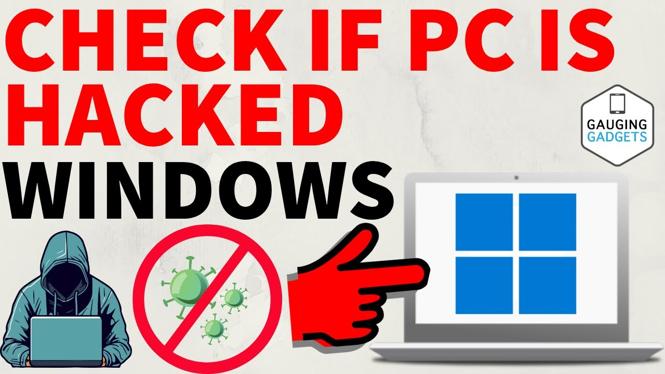
How to Check if Your PC is Hacked
In today’s digital age, the security of your personal information has never been more critical. With the rise in cyber threats, knowing how to identify if your PC is hacked is essential. This blog post will guide you through recognizing the signs of a compromised Windows 10 or Windows 11 computer and how to address those issues. Whether you’re a casual user or someone heavily invested in technology, understanding these indicators can save you from potential data loss and identity theft.
Video Tutorial
Why You Might Be Looking for This Tutorial
Many individuals and businesses are increasingly concerned about their online safety. If you’ve noticed unusual activity on your computer—like strange pop-ups, unknown software installations, consistent high CPU usage, or network anomalies—you may be wondering if your PC has been hacked. This tutorial provides valuable insights into spotting these signs early, empowering you to respond effectively and mitigate potential risks to your data and privacy.
Steps to Check if Your PC is Hacked
1. Look for Unusual Activity
Monitor your system for strange behaviors. If you find programs opening by themselves, files being modified without your input, or settings changing unexpectedly, these could be symptoms of a hack.
2. Check for Strange Pop-Ups
Frequent pop-ups, especially advertisements or prompts to download software you didn’t request, are red flags. They can indicate adware or other malicious software trying to gain control over your system.
3. Monitor Your Installed Software
Review the programs installed on your PC. If you discover unknown applications or software you didn’t install, it’s worth investigating further.
4. Analyze CPU and Network Usage
Check your Task Manager (Ctrl + Shift + Esc) for unusual spikes in CPU usage or active processes that seem suspicious. Also, use network monitoring tools to observe if there are any unusual data transfers or connections.
5. Run a Security Scan
Utilize reputable antivirus and anti-malware software to scan your computer. Make sure these tools are up-to-date and have the capability to detect the latest threats. Performing a full system scan can help identify any hidden malware or vulnerabilities.
6. Change Your Passwords
If you suspect your PC has been hacked, immediately change your important passwords. This includes your online banking, email, and social media accounts to prevent unauthorized access.
7. Update Your System
Ensure that your Windows operating system and all software are up-to-date with the latest security patches. Regular updates close vulnerabilities that hackers might exploit.
Conclusion
Regular monitoring of your PC’s behavior and being aware of the common signs of hacking are crucial in today’s world. By following the steps outlined in this post, you can help protect your computer from potential threats and secure your valuable data. Stay vigilant and don’t hesitate to reach out for professional help if necessary.
More Windows 11 Tips & Tutorials:
 Subscribe Now! 🙂

Discover more from Gauging Gadgets
Subscribe to get the latest posts sent to your email.