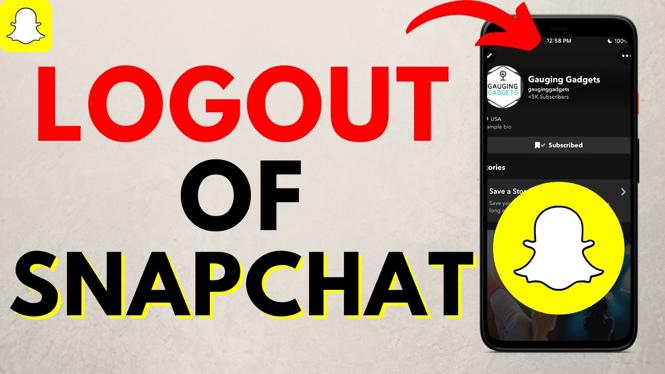
How to Logout of Snapchat App on iPhone, Android, & Samsung
Logging out of Snapchat is a straightforward process, but many users find themselves confused about how to do it on their specific devices. Whether you’re struggling with your iPhone, Android, or Samsung phone, our comprehensive guide will help you log out effectively. Understanding how to log out not only secures your account but also enables you to switch between multiple accounts easily and can even help troubleshoot any Snapchat issues you may be experiencing. Let’s dive into the step-by-step tutorial below.
Video Tutorial
Why You Might Be Looking for This Tutorial
There are several reasons you may want to log out of your Snapchat account:
- Security: Logging out ensures that your account is secure, especially if you are using a shared device.
- Multi-account Management: Easily switch between different Snapchat accounts when needed.
- Troubleshooting: If you are facing issues like crashing or difficulty sending snaps, logging out and back in can often solve these problems.
Steps to Logout of Snapchat on iPhone
- Open the Snapchat app on your iPhone.
- Tap on your profile icon located at the top left corner of the screen.
- Scroll down to the bottom of the menu and tap on “Logout.”
- Confirm by tapping “Logout” again in the popup window.
Steps to Logout of Snapchat on Android
- Launch the Snapchat app on your Android device.
- Tap on your profile icon in the top left corner.
- Scroll to the bottom and select “Logout.”
- Confirm your choice to logout.
Steps to Logout of Snapchat on Samsung
- Open the Snapchat app on your Samsung phone.
- Select your profile icon at the upper left corner.
- Scroll down and choose “Logout.”
- Tap “Logout” again to confirm your action.
Conclusion
Logging out of Snapchat on your device is a simple process that enhances your security and allows for easy account management. Whether you are on an iPhone, Android, or Samsung phone, this guide provides all the information you need to ensure a smooth logout experience. For further assistance, feel free to refer to the video tutorial above.
More Snapchat Tips & Tutorials:
 Subscribe Now! 🙂

Discover more from Gauging Gadgets
Subscribe to get the latest posts sent to your email.